Content Types
Viewing Content Types
To view all the Content Types created, you will have to click on the Index in the menu. This will show you all the Content Types on the system organised alphabetically.
To list all of your current content types, click the View Content menu item. This will take you to a page that lists all of your current content types.
Creating a Content Type
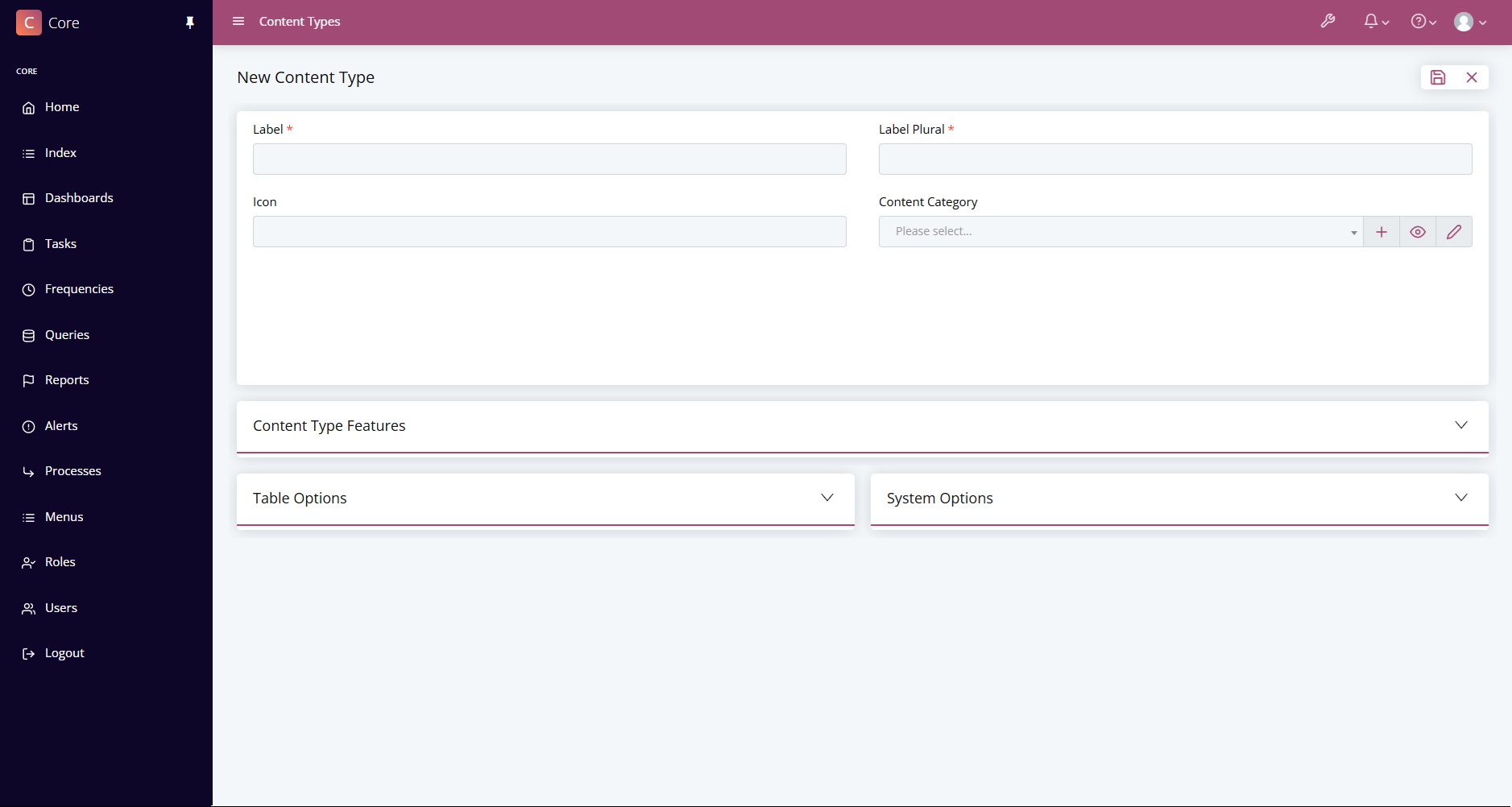
On the Index, click on Content Types. This will open up the list view.
From here click the plus in the top right corner of the page. This will
load up the edit page where you can create a new Content Type. Here are the
fields required for this.
| Option | Definition |
|---|---|
| Label | This field is used for a label for a single item. |
| Label Plural | This field is used for a label for a multiple items. |
| Icon | This field is used set an icon that will associated with the Content Type. |
| Content Category | This field is used to specify which category tour content type falls into. |
Once you are happy with the information inputted you can save your new content type by clicking the save icon in the top right corner of the page.
You can also look through the Content Type Features to get the most out of your Content Type. To see all available Content Type Features, see here.
Next Step
Once the Content Type is ready, you can move onto creating the fields.