Alerts
Alerts on Core can be used to send you an email regarding a Query. They will send you a list of all the items that match the Query. You can also add a subject and description to explain the Alert email in more detail.
Creating Alerts
When creating Alerts, there are several options to change who the data is sent to as well as some additional fields to change the content of the Alert.
Below are all the options for an Alert:
| Field | Definition |
|---|---|
| Name | A name for your Alert. If no Subject is set, the name will be used in it's place. |
| Content Query | Decides which Query will be used for the data displayed in the email. |
| Subject | This will change the email Subject and the Heading of the Alert in the body of the email. |
| Description | Additional text that will be displayed in the email body. |
| Trigger Type | Choose when this Alert should run. Whether it should run on a set frequency or if a Core Event has been ran. |
| Event Trigger | A multi-select field which will let you choose which Core Events the Alert should run on. This only applies if the Trigger Type has been set to "Event". |
| Frequency | The frequency of when this alert will run. This only applies if the Trigger Type has been set to "Frequency". |
| User To Alert | This lets you set a User who will receive this Alert. The Alert will be sent to the User's email address. |
| Additional Emails To Alert | Used for if you want to send an email to a non user of the system. If this is set as well as the User To Alert, both emails will be Alerted separately. |
| Field To Alert | If a field on the Query has a field made for an email address, this can be used to send an email to what the set email address on the item. This is used instead of "User to Alert" And "Additional Emails To Alert" |
| Also Send Alerts Without Items | This is so if the Query has no items that match, it will still send the email notifying that there are no items. By default, Queries with no items will not send an Alert. |
| Notification Type | Choose whether to send an email notification or a Teams Message. For the Teams Message, see here for how to set it up. |
| Teams Webhook URL | The Webhook required to send the Alert into a Teams chat. |
| Scheduled Run | If the Alert is set to run on a frequency, this will show when it is next due to run. |
Receiving the Alert
In this section we will go through the step by step process of building a new alert. You can either follow the steps below or you can view our video tutorial by clicking the following link:
Video Tutorial - Building new Alert
For the purpose of this document I will be using a scenario to provide examples. You can find the scenario by following the link in this description.
To build a new Alert, first click on the Alert content type. Once the page has loaded you can click on the plus icon on the right hand side of the page.

Now you can fill out the relevant information for your Alert.
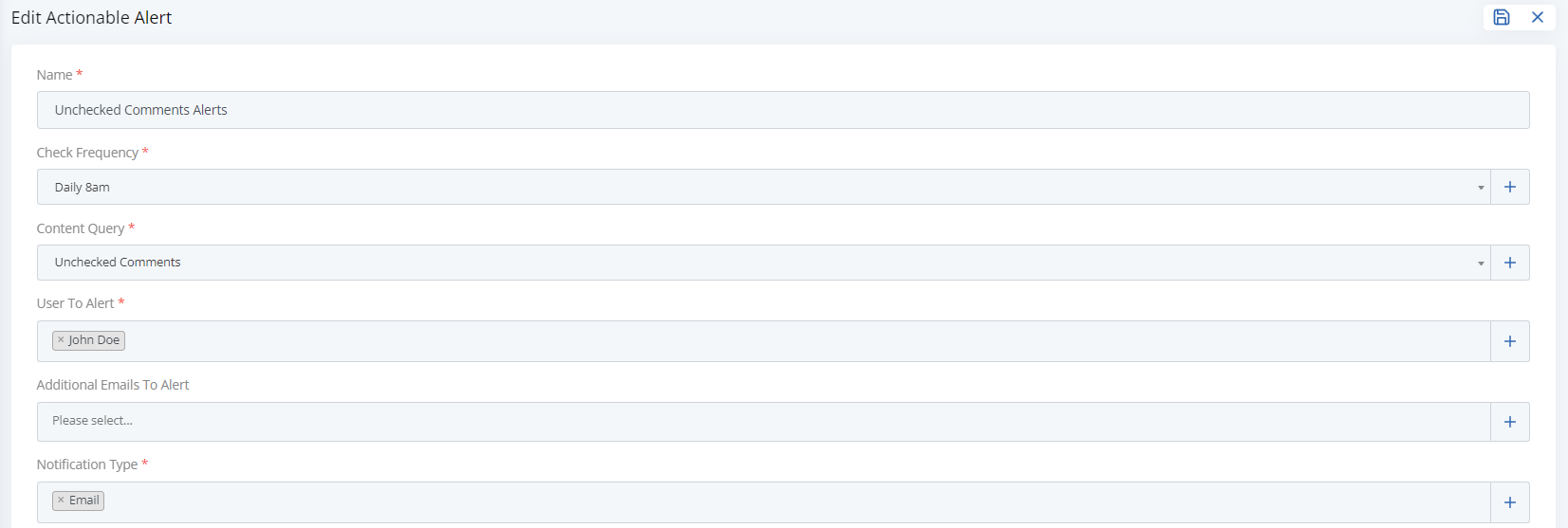
Once you have filled out the required information you can use the save icon in the top right corner.
You have successfully created a new Alert!
End of Scenario
If you followed along with this scenario you have now created a content query, a
report and an Alert so you will start to receive email notifications
whenever any comments are unchecked. The Alert is scheduled to check
every morning at 8am so if it notices that any comments have not been checked
you will receive an email notification that contains a report with all of the
requested data inside.