Jobs
Viewing Jobs
After clicking the "Create job" button we are redirected to a view of the job that we just created.
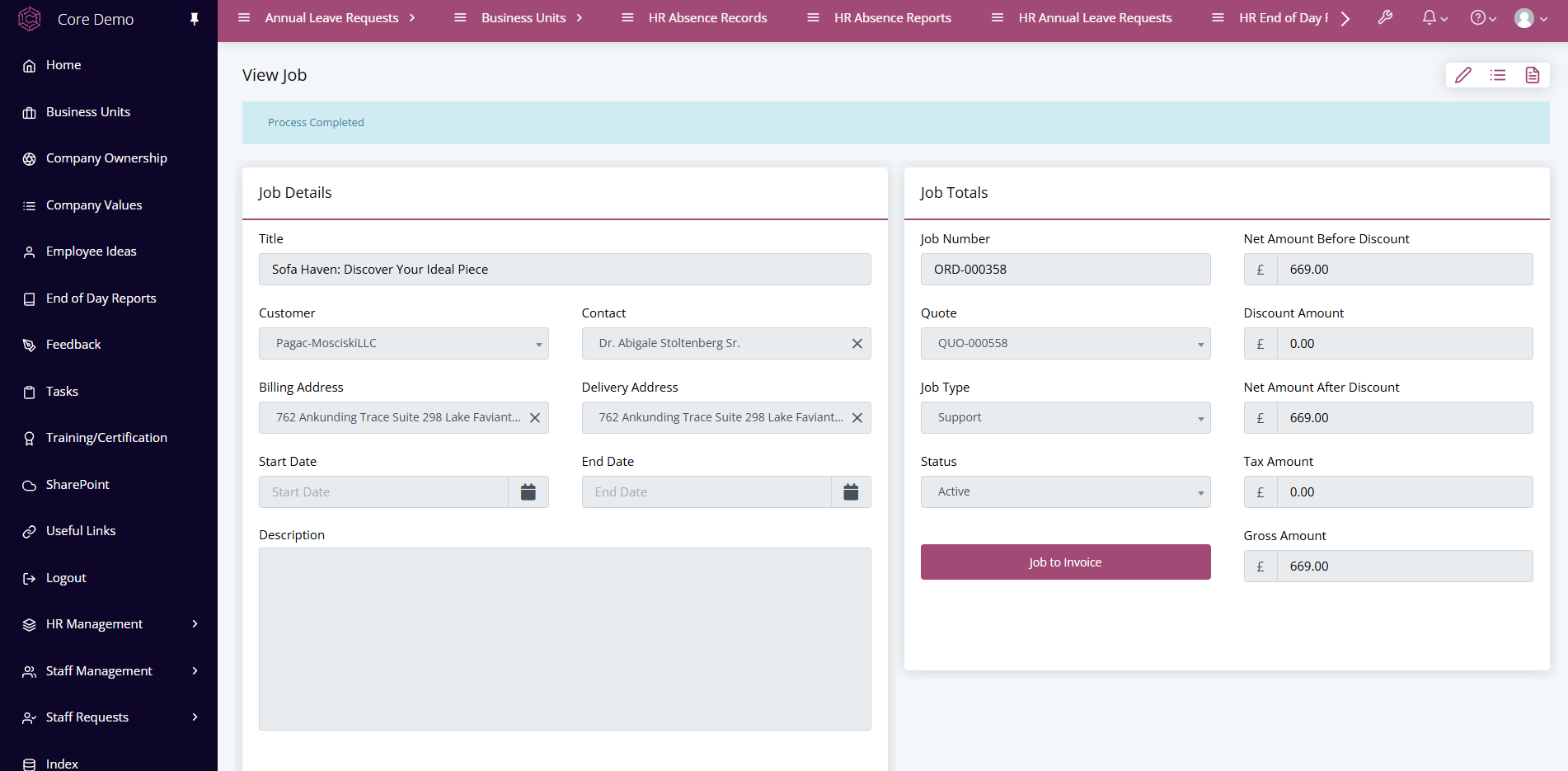
This job form still contains all of the details that we need, but now there are extra things included such as start/end dates and different status indications. Scrolling down will also reveal a new section for "tasks".
Adding Tasks
Tasks are necessary to add as they include the literal job that needs to be done to advance with the process. A task can be added with the "add" button located in the top left of the section.

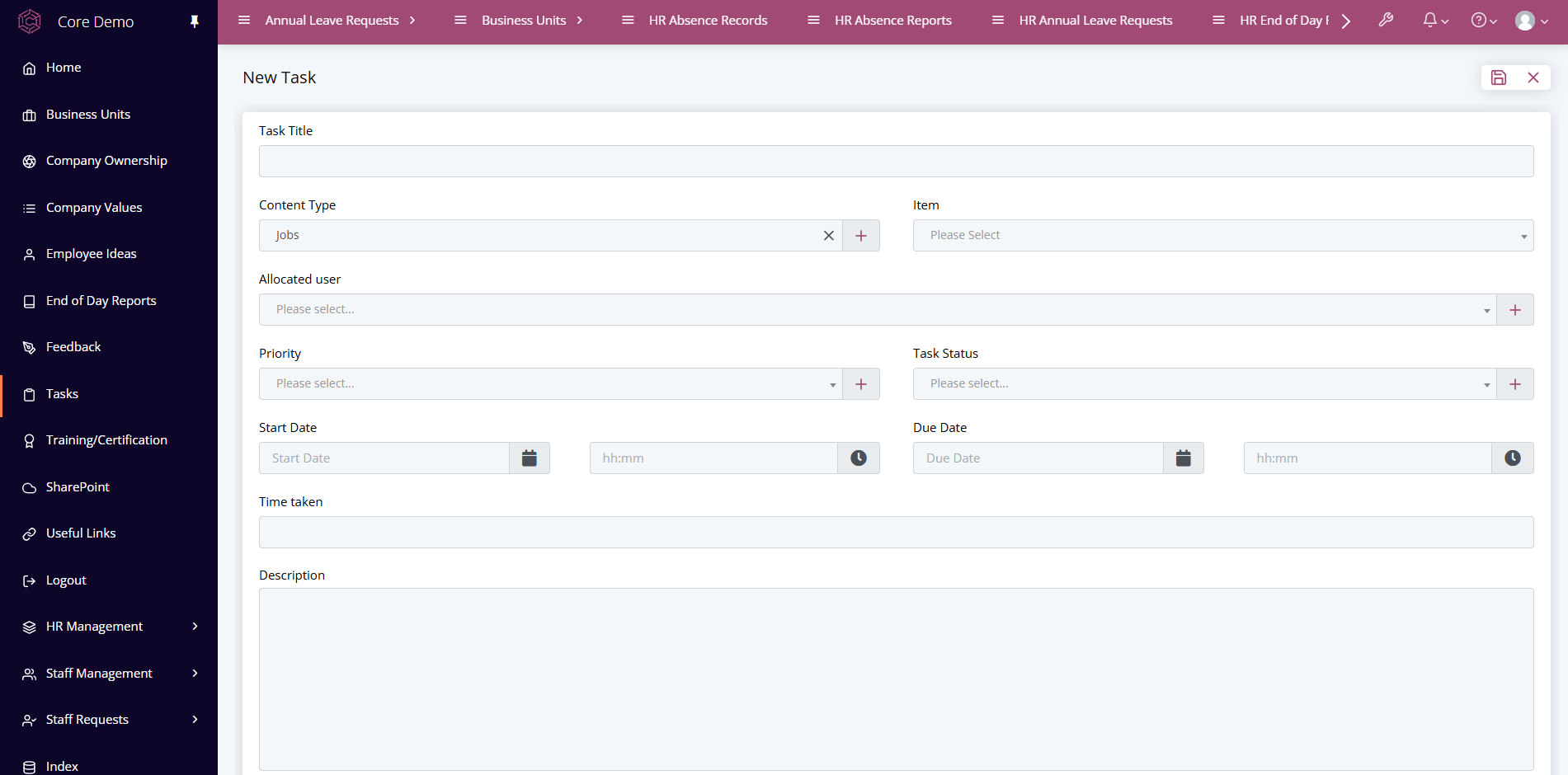
Clicking this button will take us to a new form to create a task. Here we can allocate a user to the task as well as specifying what the task is, how highly it should be prioritised and when it needs to be done by.
Once the task has been added it can be viewed either directly from the job listing using the inline tasks feature, or it can be viewed from the task content type list. Now it's up to the person to complete the task before its due and update the task status as "completed".
Converting to Invoice
Once the task has been completed, the form can now finally be turned into an invoice.
The convert to invoice button is once again placed conveniently on the form
just like before.