Push to Calendar
In this section we will go through the steps to create a process that pushes instances into your Calendar. For this example we will be creating a process that pushes a task into the assignees calendar.
Building the Push to Calendar Process
You should see a button on the nav bar on the left on your Core site called Core Processes. Click on that button and you will be directed to the Core Process list where you can create a new one.

Once you are in the list view, click on the plus icon in the top right to create a new process.

Now type in a name for your process and press save.

Now in the Process list view you should be able to see your new process.

Let's go ahead and start building the process!
First, click on the edit button to access the Process Builder. Once you are in the list view, click on the plus icon in the top right to create.
First lets fill in the options on the bar on the left. If you would like to find out more about what the options on the left mean you can find the definitions here: Option definitions
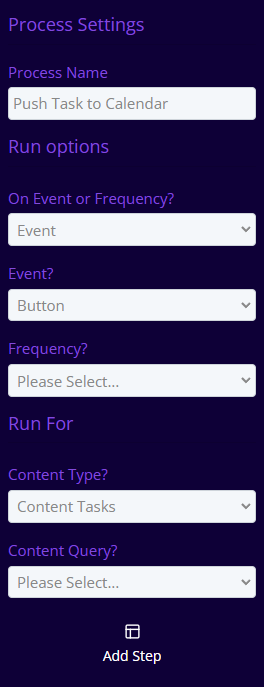
Now we have inputted the options let's build the process step where we push Tasks to a calendar!
Click on the Add Step button on the left. For this step we will be selecting the step type Push to Microsoft Office. For this example as we want to push tasks to the calendar we will be selecting Content Tasks as the content type and the action will be To Calendar.
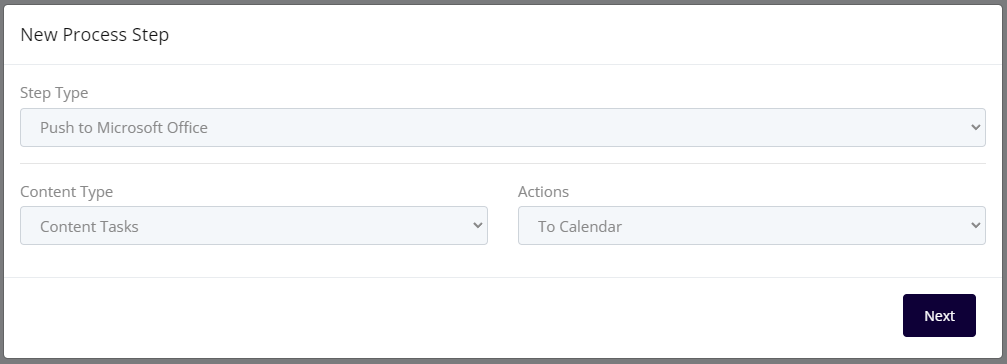
Once you have filled out your first settings click on the Add Step button. Now select the fields you are wanting to show on the email. You can also select the calendar you are wanting to push through. I have selected the person who is assigned to the task.
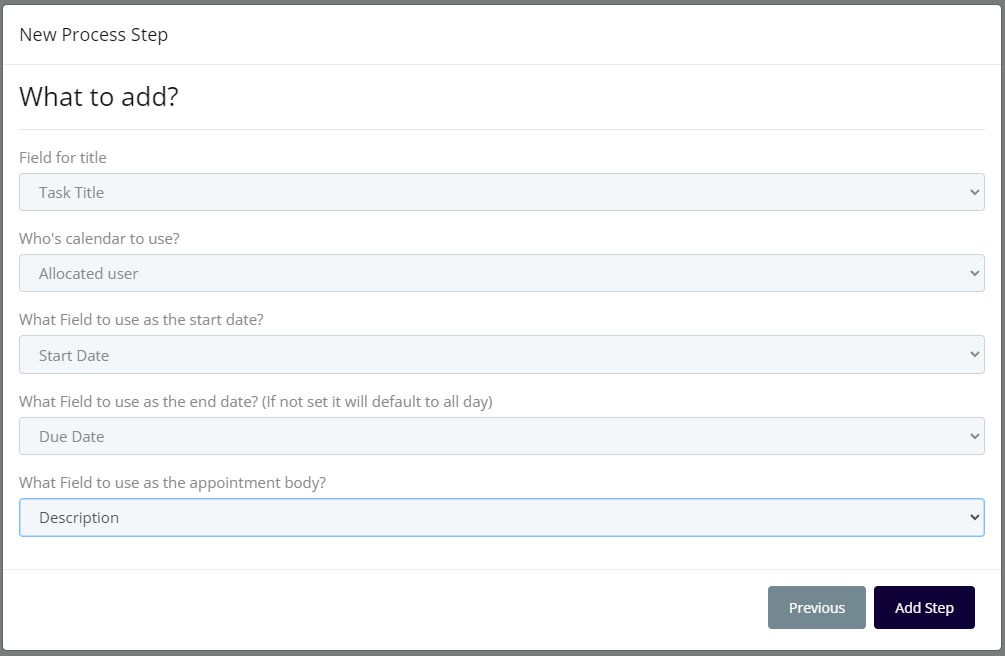
Now you have all of your settings you can save them and save the process. Now all you need to do is add the button onto the content type.
To see how to add a button you can view the steps by clicking on this link.
Once you have added on your button you can go ahead and start pushing tasks into your calendar just by clicking the button you just added!