Custom Queries
What is Custom Query
A Custom Query is still a Query but this doesn't use conditions in Core. Instead, this uses a Database view and displays the columns set in the view.
Creating a Custom Query
To create a custom query, you need to have a Database view already set up. If you don't have a view set up, this won't be possible.
Create a query using this guide, but when you are about to add the conditions, you have to click the checkbox named 'Custom Query'. This will reveal another field to set called 'Query Name'. In this field, you need to put the name of the Database view. If the view can't be found, an error will be returned saying:
No Custom Query ("View") exists with that name
Important Information
When using the Custom Queries for Reports, Alerts and Processes, it is required to include a column named 'id'. This is so in these areas, they will still be able to function as intended.
Scenario
In this section we will go through the step by step process of building a custom content query. You can either follow the steps below or you can view our video tutorial by clicking the following link:
For the purpose of this document I will be using a scenario to provide examples. You can find the scenario by following the link in this description.
To create a new Custom Content Query, firstly click on the content type called Content Queries. Once the list view has loaded, click on the plus icon on the right hand side of the page.

This will load up the content query form.

Here you can enter the name of your content query. You can also select the content type that you are wanting to use. Because we are building a custom query it is important that we tick the custom query box. As soon as you click the content query option you should see that the options have changed in the Query Builder section. This section becomes the Query Name section and here is where you can reference the name of the custom view we are wanting to pull through. All you have to do is write the view name in this box, the same name as what it is called in the database.
If I was using the scenario my content query would look like this:
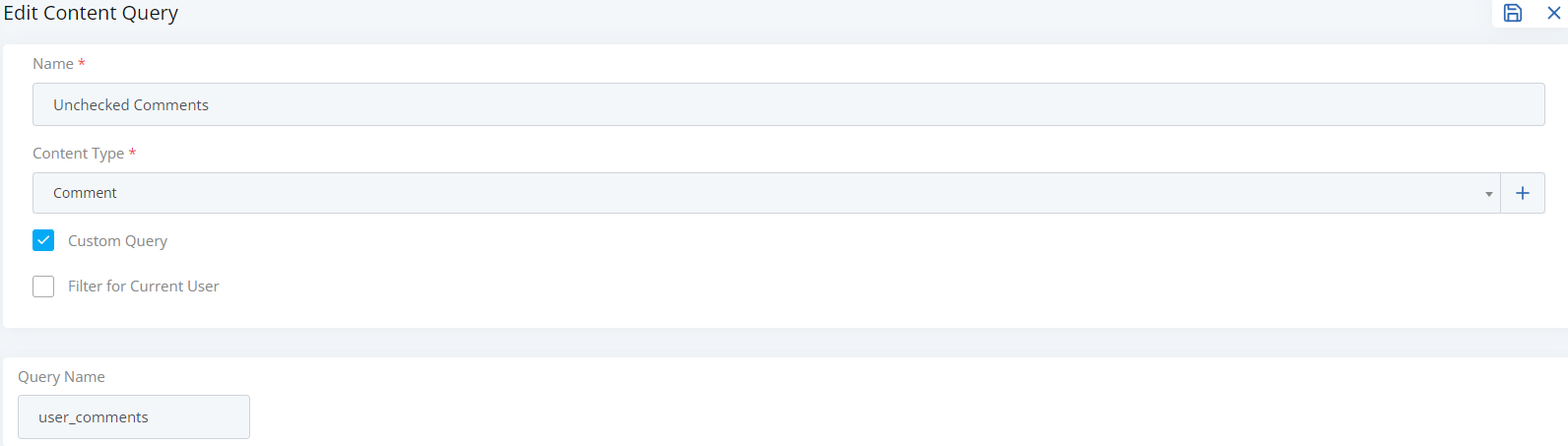
Once you are happy with your new content query you can click the save icon at the top of the page. You have successfully built your custom content query!
Now you can build a report that relates to this query.
To find out how to create a new report, click the following link: Building a new report