Teams Alerts (webhooks)
Webhooks in Core is a way of setting up Alerts that will be sent to your channel in Microsoft Teams.
Through Alerts, you can notify yourself when certain events take place in Core and instead of sending them just to your email you can now receive notifications through Teams.
Below I will go through the quick and easy steps to set this up.
There is also a video tutorial on this that you can find by following this link. This video will only be relevant when setting up the teams side of things so once set up in teams and you have the URL, please follow our steps below from step 2.
Step 1 (Setting up the webhook in MS Teams)
Open up Microsoft Teams and create or select the channel that you are wanting to send Alerts to.
Once inside of your channel click the plus icon in the top right corner of the page. Then click on the Manage Apps button on the bottom right of the modal. Once the page has loaded click the More Apps button on the top right.
You should now see a search bar in the top left of the Apps page. There you can go ahead and search for the app name "Incoming Webhook". Select the Incoming webhook app and click on the Add to a Team button. Once loaded select the Set up Connector button on the modal.
Add a name for your webhook in the name field and select Create. Once the page saves you should see a url appear in a box below the name. Copy the url as we will need this in the next step!
Step 2 (Setting up the webhook in Core)
Now we have set our webhook up in teams we can use this url in an actionable Alert in Core. First we need to create a content query in Core. To find out how to do this follow our steps from a previous tutorial. Content Queries
Once we have our content query ready we can go ahead and create an Alert. As before we must give our Alert a name. Next select the content query as we usually would. Now give the Alert a Trigger Type. For this example I will be selecting the Trigger Type as an event and the Event Trigger as Created so when a new instance is created I will get an Alert through to Teams.
Finally to tell the Alert that this Alert is a webhook that will be sent through Teams, we must select the notification type as a Teams Webhook. The Teams Webhook URL is the URL that we copied when creating the webhook in Teams. As this is an Alert you can add an email address to the Alert too if required.
Once you save the new Alert you should start getting Teams Alerts through when a new instance is created.
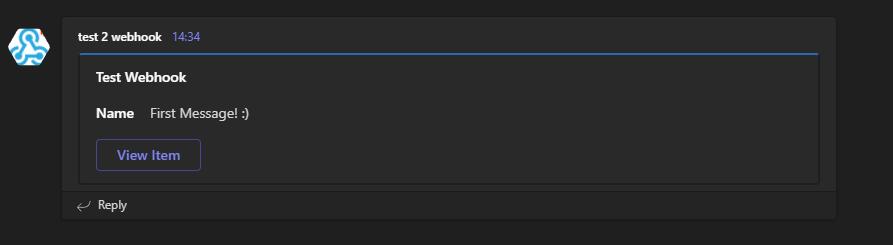
Here is what your teams Alerts will look like: