Creating Content Fields
What is a Content Field
A Content Field is an input where specific information is stored and entered. Whenever you want to record a piece of information you should create a content field for it under the corresponding content type.
Creating a Field
To create a content field, go to the content type Content Types and scroll down until you see the content type you are wanting to add fields to. Click the edit button on the right side of the content type.
Once you are on the Content Type edit page, at the bottom of the page you will see that there is a Content Fields section. You should also see a Create button on the right hand side of this section. Clicking the Create button will open up the Edit content field page.
Once the Edit Content Field page has loaded you should see something like this:
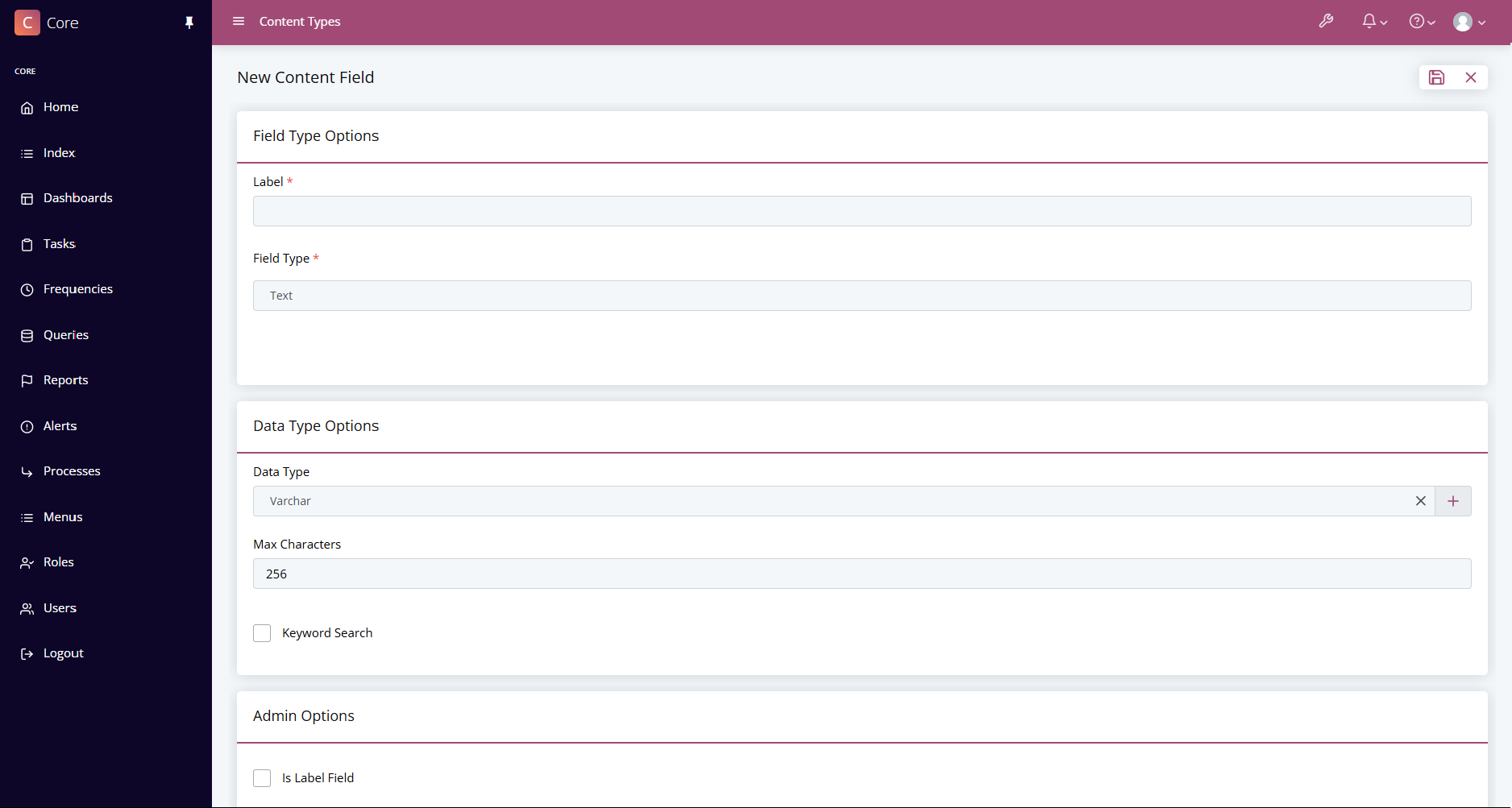
The required fields are as below:
| Option | Definition |
|---|---|
| Label | The name of your content field e.g. "Active User". |
| Field Type | the type of field you want to add to your content type e.g. "Checkbox". |
Depending on the field type of the Content Field, there will be different requirements to save the field.
See below for the different Field Types:
Field Types
| Type | Description | Example Fields |
|---|---|---|
| Text | The most common type of field, these are open fields which allow 255 characters of text. This can be further. | Title, Price, Quantity, Phone Number |
| Radio Button | Multiple choice type field which only allows one option to be selected between the available options. | 1 to 5 rating, Yes or No |
| Select | Selects are a dropdown list of items you can choose one from. This can be a predetermined list or can link to another Content Type. | A User, Country, Organisation |
| Multi-Select | Multi-Selects, similar to Selects, they are a dropdown list of items which can be from a predetermined list or can link to another Content Type. But these fields can select multiple items from the list. | Assigned Users, Favourite Colours, Hobbies |
| Checkbox | A box which you can turn on or off. | Has been checked?, Agreed? |
| Textarea | This is a larger version of the Text field type. It can support up to 2500 characters. | Notes, Description |
| Hidden | This is a field which can't be updated through the interface but can contain any piece of information. | |
| File Upload | A single file uploader. To see what files can be uploaded, see this page. | Quote PDF |
| Multiple File Upload | A multiple file uploader. To see what files can be uploaded, see this page. | Email Attachments |
| Image Upload | A single image uploader. This will only accept image types, but you can see what image types can be uploaded, see this page. | Profile Picture, Company Logo |
| Multiple Image Upload | A multiple image uploader. This will only accept image types, but you can see what image types can be uploaded, see this page. | Product Images, Site Images |
| Multifactor | This field allows for two-factor authentication codes to be added into Core. | Login Credential Two Factor |
| Calculated | Calculated fields are fields can that use existing fields to transform and manipulate data. | Quote Number, Total Cost, Is Active |
| Signature | This will store a signature as an image on Core and give the user an interface to write their signature. | Order Signature, Agreement Signature |
Creating a Text Field
When creating a text field, you must set a Data Type.
Data Types
| Data Type | Description | Example |
|---|---|---|
| Varchar | A field which allows all characters. | Title, Phone Number, Description |
| Date | Stores a calendar date in yyyy-mm-dd format. | Due Date, Review Date |
| Date Time | Stores a calendar date and time in yyyy-mm-dd HH:ii:ss format. | Booking, Recorded At |
| Time | Stores a time with HH:ii format. | Start Time, Due Time |
| Decimal | Stores a number to 2 decimal places. Anything store with more than 2 decimal places will be rounded to the second decimal. | Price, Total Cost |
| Double | Stores a number with a to a large decimal point. | Very precise Measurement |
| Float | Stores a number with a to a large decimal point. | Very precise Measurement |
| Integer | Stores a whole number. | Quantity, Age |
Note
Floats and Doubles currently create Doubles.
Creating a List Field
When creating a List field there are extra fields that are required to make these. The List Fields can either be a List Field or a Content Type Field.
The three field types which can be a List Field are:
- Select
- Multi-Select
- Radio Button
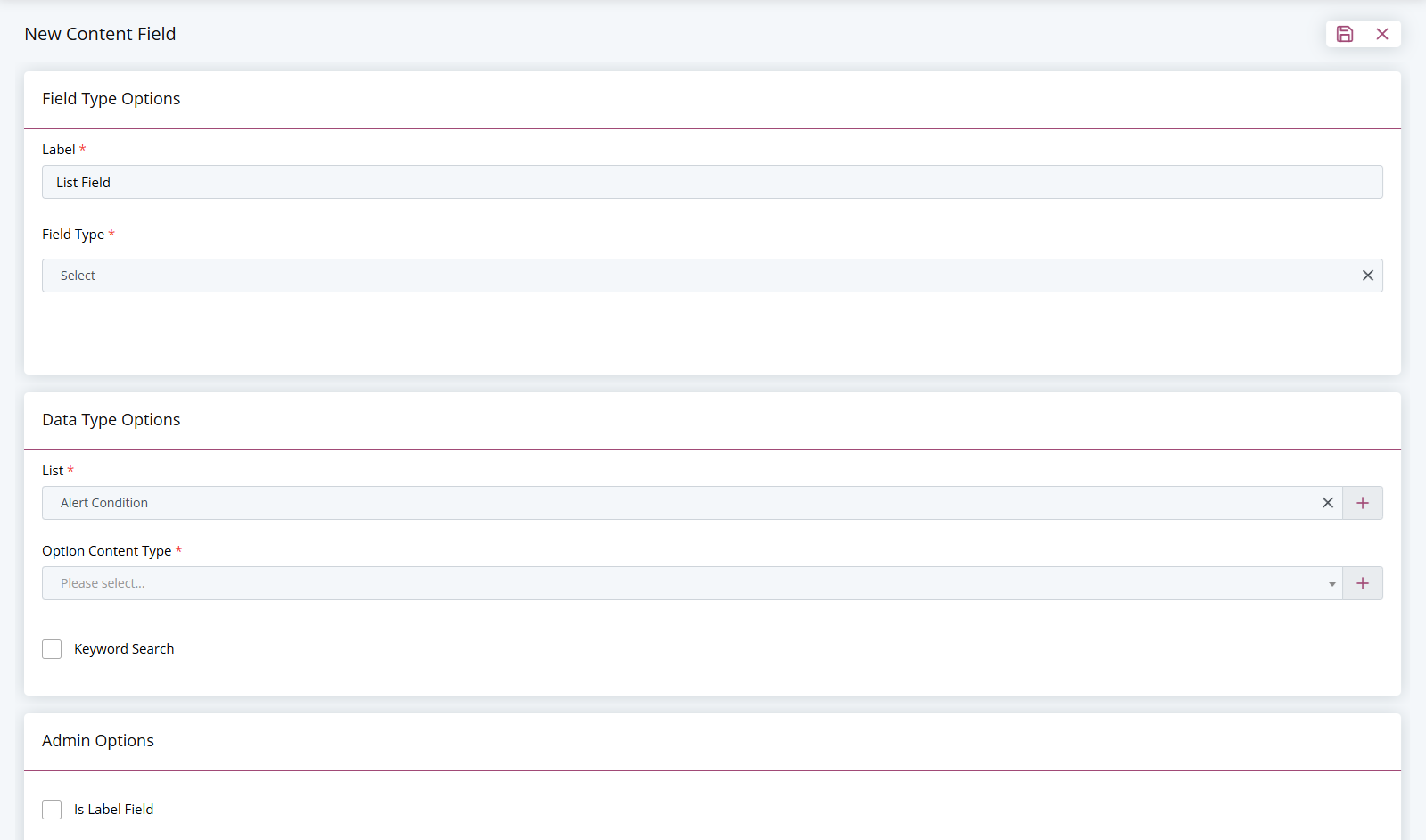
List Field
The only additional requirement when making a Select using a list is to set what list it should be using. You can do this by setting the List. If the List you want to add does not exist, you can click the Plus icon next to the field to start creating a new one. To learn more about Lists, see here.
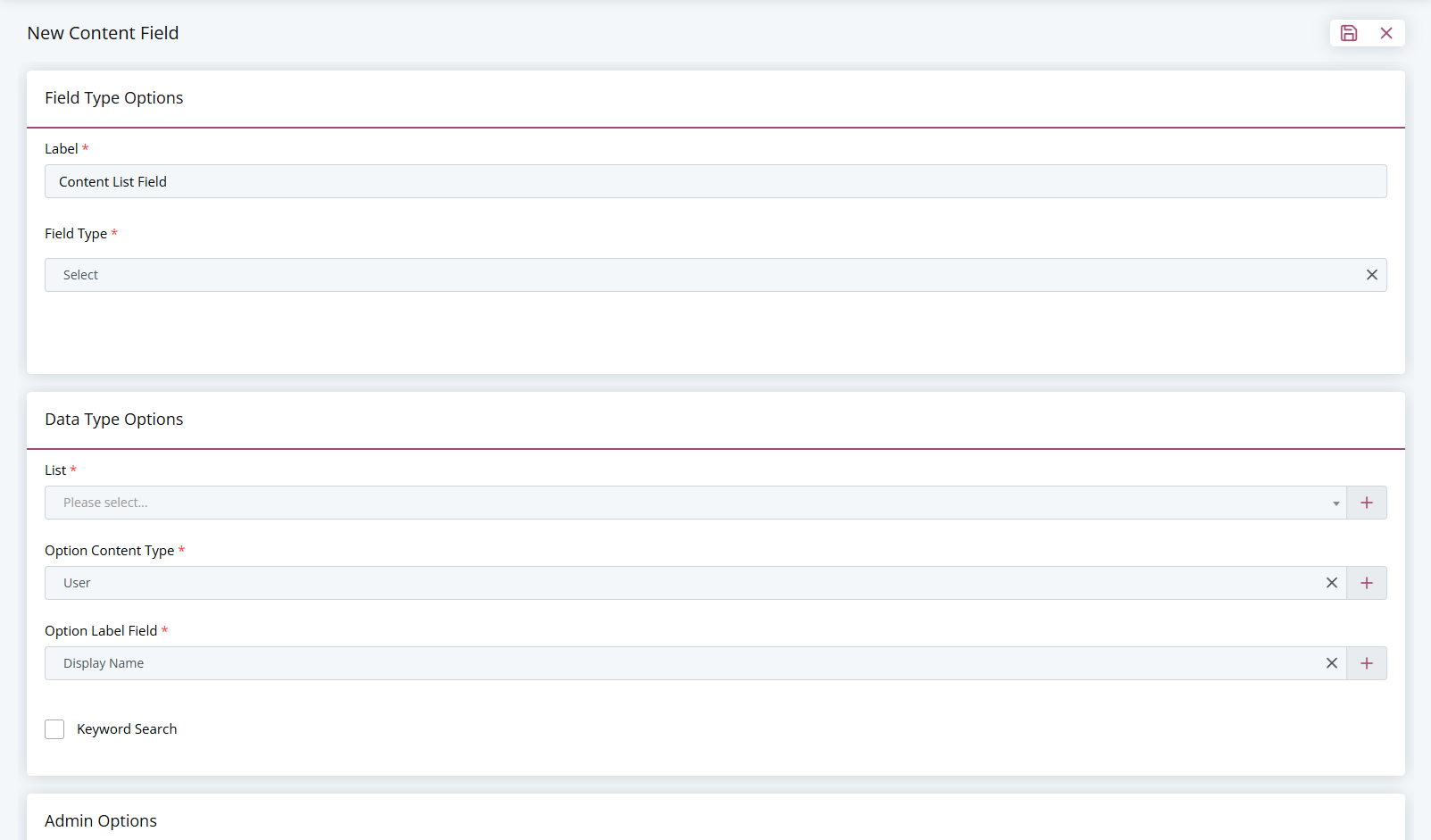
Content Type Field
Content Type Selects are when you want to link one Content Type to another. When creating these, you must set the Option Content Type field as well as the Option Label Field. The Option Label Field will be what field will be displayed in the dropdown.
Extra Options
There are also some optional checkboxes at the bottom of the page. You can tick any of the boxes where necessary. (For more info on these options see an explanation below)
| Option | Definition |
|---|---|
| Keyword Search | Enables a search bar which will check the marked keyword search fields for the searched text |
| Is Label Field | Sets the current field as the label field |
| Is Owner Field | Sets the current field as the owner filed |
| Is Group Field | Sets the current field as the group field |
| Is Favourite Group Field | Sets the current field as the favourite group field |
| Required | Setting the current field as required. If selected the field must be filled in before you save the form and cannot be left blank. |
| Featured | Setting the current field to be featured in the list view, meaning you don't have to click into the view to see the data within this field. |
| Searchable | Setting the current field to be searchable. You can search for data within this content field. |