Option definitions and adding buttons
Process Builder Option Definitions
| Option Name | Definition |
|---|---|
| Process Name | This is where you specify the name of your Process |
| On Event or Frequency | Would you like to trigger the process by Event or Frequency (More detail on next options) |
| Event? | An event is a manual trigger, so for example by someone clicking a button it triggers the process. |
| Frequency? | A Frequency is a scheduled trigger, so if you would like your process to run daily or weekly at a certain time you would add in a frequency. |
| Content Type | This is the content type the process starts with. So if I was converting a Quote to a Job I would select the quote content type in this option. |
| Content Query | This is an optional setting where you can add a content query to add further conditions to your process. |
| Add Step | This option allows you to add a new step. |
How to add a Button to use in a process
To add the button onto a content type we need to quickly head over to the layout builder so that we can add the button onto the form.
Go to the content type called content Types and look for the content type you want to add a button to in the list view. For this example I will be adding a button onto the quote content type. When you have found your content type, click the edit button to the right of it.

Now click the Edit button on the Quotes Edit Layout. This will open the layout builder where you can add the button.
On the bar on the left you should see an option to Add a button to the form. Once the button appears, drag the button wherever you would like it to sit on the form.
Now you have dragged the button onto the form, click on the button in the layout builder. You should see some more options appear on the left where you can tell the system which Process the button relates to. These are my settings,
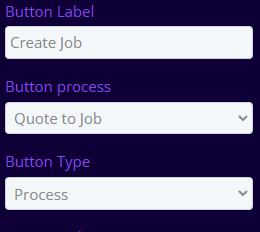
| Button Option | Definition |
|---|---|
| Button Label | The name of the button on the form |
| Button Process | Select the process related to this button |
| Button type | The type of button, in this case it is a process button |
Now we have added in the settings we can save the layout builder in the bottom left!