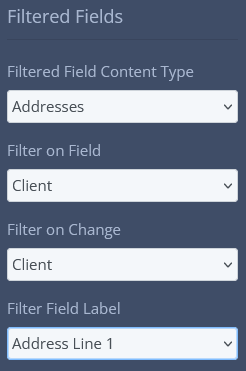
Filtered Fields
Using Filtered fields you can limit the items shown in a drop down field to those that are relevant to the current context, either by:
- Filtering the list based on the item you are currently viewing
- Filtering the list based on the value selected in another field
Filtered Field - Options
To set the options for filtered fields, edit the form layout of the content type you want the filtered field on. Click on the field that you want to filter. Once selected, scroll down the menu on the left, you should see the filtered field options at the bottom.
| Option | Definition |
|---|---|
| Filtered Field Content Type | Select the content type you want to show in the drop down list. |
| Filter on Field | Select the field in the table above that you want to match on. |
| Filter on Change | Leave this field blank to filter based on the currently viewed item. Or, specify the field on the current item that will trigger the list to be filtered. If selected, this field is typically the same as the "Filter On Field". |
| Filter Field Label | Select the field you would like to display in the dropdown, I.e. name or label field. |
We will show these options in action in the examples below:
Example 1 - Filtering Based on the Currently Viewed Item
Let's say we have a content type called clients and another called addresses. A client can have multiple addresses and each address is an individual instance in the content type addresses.
On the Client screen, we have a field called default_billing_address. This field shows a drop down list of addresses, but we want to filter the list to only show addresses for the relevant client.
| Option | Explanation | Input |
|---|---|---|
| Filtered Field Content Type | We want to display a list of addresses in the drop down. | Addresses |
| Filter on Field | We want to filter the list to show addresses for a specific client. | Client |
| Filter on Change | In this case, we want to filter based on the currently viewed item, so we leave this option blank. | Blank |
| Filter Field Label | We want to show the client's name in the drop down, or we could choose id, account_ref or another field that uniquely identifies the client. | Client Name |
Here is what our options would look like:
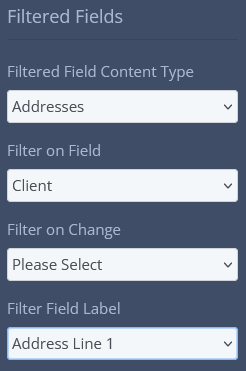
Example 2 - Filtering Based on the Value Selected in Another Field
This example builds on the example above. In this case, we add a third content type called jobs. A job has a client field, which shows a drop down list of clients and it also has a field called billing_address.
The billing_address for a particular job may or may not be the default_billing_address for the selected client. But either way, we want to filter the list to show addresses for the selected client only.
| Option | Explanation | Input |
|---|---|---|
| Filtered Field Content Type | We want to display a list of addresses in the drop down. | Addresses |
| Filter on Field | We want to filter the list to show addresses for a specific client. | Client |
| Filter on Change | In this case, we want to filter based on the value selected in the client field. This field is typically the same as the "Filter On Field". | Client |
| Filter Field Label | We want to show the client's name in the drop down, or we could choose id, account_ref or another field that uniquely identifies the client. | Client Name |
Here is what our options would look like: