Queries
Queries are used throughout Core for Processes, Reports and Dashboards.
To create a new Content Query, firstly click on the content type called Content Queries. Once the list view has loaded, click on the plus icon on the right hand side of the page.
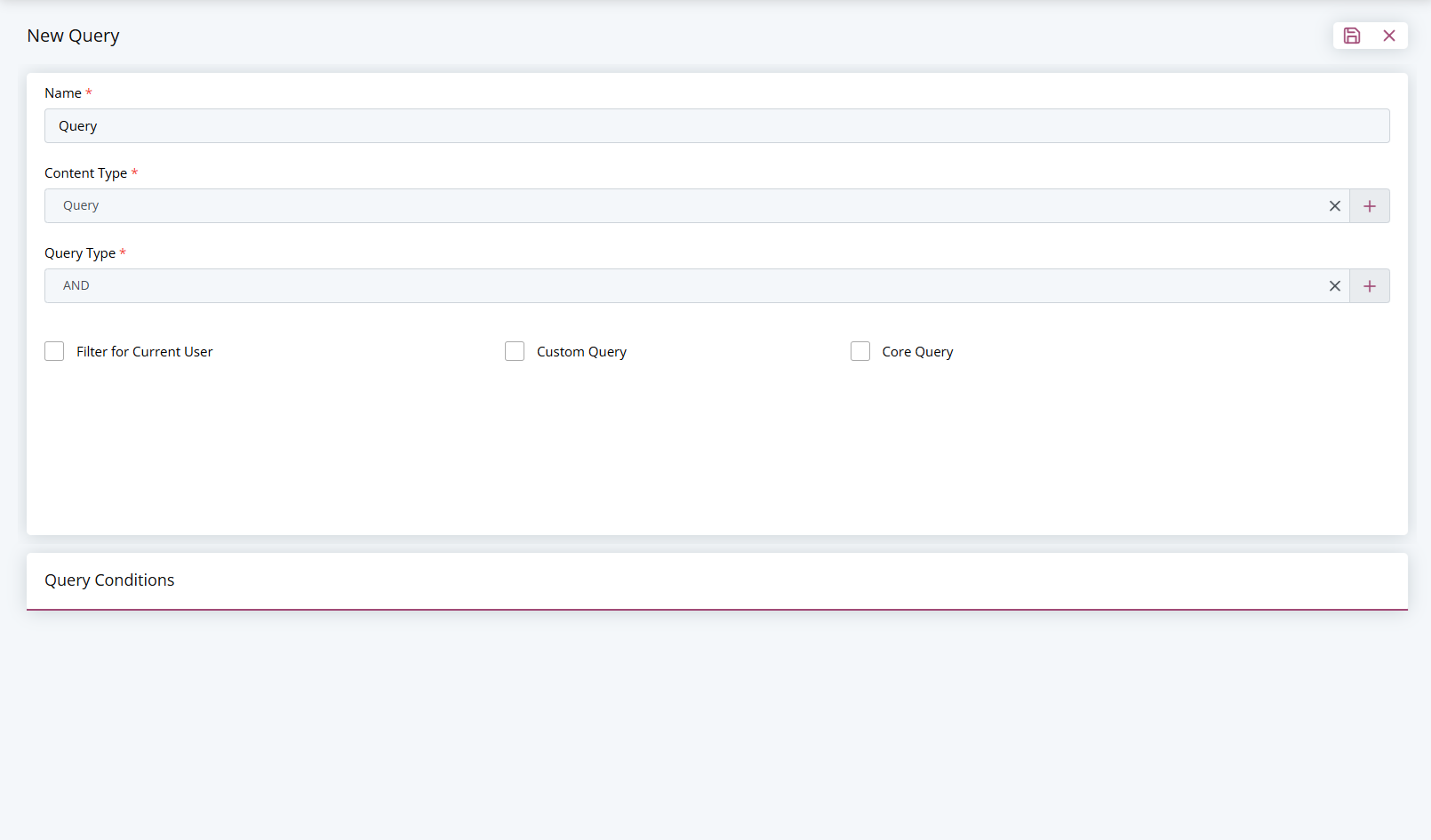
Clicking the plus icon will open the edit page. Here is where you can fill out all of the details for your content query.
| Option | Definition |
|---|---|
| Name | This field is used to give your content query a distinctive name. |
| Content Type | This field is used to give you content query a distinctive name so you can pick it later in your actionable alert. |
| Query Type | An option to choose whether all conditions need to be met or if only one condition needs to be met. |
| Custom Query | An option to use data from a custom query/ view in a database. |
| Filter for current user | Allows the user to filter the data to be relevant to the user. |
Once the Query has been created and saved, you will have to add query items to choose what fields should be filtered. This can be done for multiple fields which can all have their own conditions.
You can add multiple fields and conditions for one content type by clicking the Add Item button at the bottom of the page and repeating the last few steps from the content builder.
Depending on the Field Type, the options for the conditions will be changed.
Date Condition
For making a query on based on a Date/Date Time Field it will show the options below:

The options for this allows you to get a range of dates from the current date. This is done by saying how many days before or after the current date the range should be. Meaning if I wanted the past 30 days as a range, I would select 'Before' in the 'Before Or After' Field and set 'Threshold in days' to be 30.
Similarly, if you want to get all the items coming up in the next 7 days, you would select 'After' and set the 'Threshold in days' to be 7.
If you also want to search for if the field is blank, you can check the 'Include Empty Fields?'.
Select Condition
For making a condition based on a Select Field it will show the options below:

For this condition, you have the following Operators available:
| Operator | Definition |
|---|---|
| Equals | Search for values which match exactly as the Condition. |
| Not Equals | Search for values which don't match exactly as the Condition. |
| Contains | Search for values which contain anything like the Condition. |
| Is Empty | Search for values not set. |
| Is Not Empty | Search for values which have anything set. |
If you select 'Equals' or 'Not Equals', you need to choose what the the select should equal or not equal. You will also have the option to include empty selects with both equal options by checking the 'Include Empty Fields'? checkbox.
The 'Is Empty' and 'Is Not Empty' operators will do as stated and select the items which are only empty or have any value set.
Default Condition
For making a condition based on field types not mentioned previously it will show the options below:

For this condition, you have the following Operators available:
| Operator | Definition |
|---|---|
| Equals | Search for values which match exactly as the Condition. |
| Not Equals | Search for values which don't match exactly as the Condition. |
| Contains | Search for values which contain anything like the Condition. |
| Is Empty | Search for values not set. |
| Is Not Empty | Search for values which have anything set. |
Once you are happy with your new content query you can click the save icon at the top of the page.
To find out how to create a new report, click the following link: Building a new report